
Every data scientist has faced the dreaded “Works on My Machine” paradox: a Jupyter Notebook or training script runs flawlessly on your local setup, but immediately crashes when pushed to a colleague’s laptop or a cloud GPU instance.
Differences in Python minor versions, CUDA driver mismatches, or conflicting C++ binaries (like
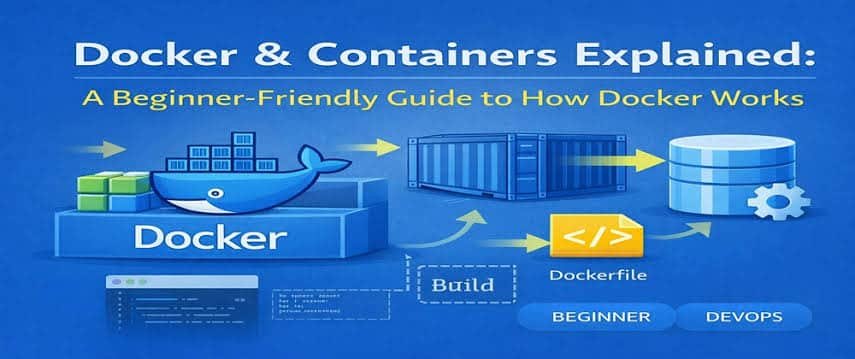
libgomp or OpenBLAS) cause silent failures and wasted hours. Docker solves this by packaging your entire data science stack—operating system libraries, Python packages, project code, and configurations—into a lightweight, isolated execution unit called a container.1. Virtual Machines vs. Docker Containers
Data scientists often confuse Docker containers with Virtual Machines (VMs). However, containers are far more lightweight because they share the host system’s OS kernel rather than virtualizing full hardware guest operating systems.
┌──────────────────────────────────────┐     ┌──────────────────────────────────────┐
│        VIRTUAL MACHINES (VMs)        │     │          DOCKER CONTAINERS           │
├──────────────────┬───────────────────┤     ├──────────────────┬───────────────────┤
│ App A (PyTorch)  │  App B (TensorF)  │     │ App A (PyTorch)  │  App B (TensorF)  │
├──────────────────┼───────────────────┤     ├──────────────────┼───────────────────┤
│ Guest OS (Ubuntu)│ Guest OS (CentOS) │     │ Python 3.10 Libs │ Python 3.11 Libs  │
├──────────────────┴───────────────────┤     ├──────────────────┴───────────────────┤
│         Hypervisor (VirtualBox)      │     │            Docker Engine             │
├──────────────────────────────────────┤     ├──────────────────────────────────────┤
│         Host Operating System        │     │         Host Operating System        │
└──────────────────────────────────────┘     └──────────────────────────────────────┘
-
Virtual Machines: Heavyweight, slow startup (minutes), high memory footprint due to full Guest OS overhead.
-
Docker Containers: Lightweight, sub-second startup, low RAM overhead, native execution performance.
2. Core Docker Terminology for Data Science
To use Docker effectively, you only need to understand three core abstractions:
-
Dockerfile: A simple text file containing explicit instructions on how to construct your execution environment step-by-step.
-
Docker Image: An immutable, compiled read-only blueprint generated from a Dockerfile. Think of it as a snapshot template of your environment.
-
Docker Container: A running live instance created from an image. You can start, stop, scale, or destroy containers without affecting your host system.
3. Step-by-Step: Dockerizing a Machine Learning Pipeline
Let’s build a production-ready containerized environment for a scikit-learn training script.
Step 1: Project Directory Setup
Organize your workspace with explicit file boundaries:
Plaintext
my-ml-project/
├── Dockerfile
├── requirements.txt
├── .dockerignore
├── data/
│   └── raw_sales.csv
└── src/
    └── train.py
Step 2: Create a .dockerignore File
Prevent uploading massive local datasets or cached files into the Docker build context:
Code snippet
__pycache__/
*.pyc
.ipynb_checkpoints/
.git/
.env
data/
Step 3: Write the Dockerfile
A clean, layer-optimized Dockerfile tailored for Python ML tasks:
Dockerfile
# 1. Use an official, lightweight Python base image
FROM python:3.10-slim

# 2. Prevent Python from buffering logs (ensures real-time console streaming)
ENV PYTHONUNBUFFERED=1 \
    DEBIAN_FRONTEND=noninteractive

# 3. Install necessary C-compilers and runtime dependencies
RUN apt-get update && apt-get install -y --no-install-recommends \
    build-essential \
    libgomp1 \
    && rm -rf /var/lib/apt/lists/*

# 4. Set the working directory inside the container
WORKDIR /app

# 5. Copy requirements first to leverage Docker layer caching
COPY requirements.txt .

# 6. Install Python package dependencies
RUN pip install --no-cache-dir -r requirements.txt

# 7. Copy project application code into the image
COPY src/ ./src/

# 8. Define the default entrypoint command when container runs
CMD ["python", "src/train.py"]
4. Building and Running the Container
Once your Dockerfile is created, use the Docker CLI to build the image and execute container jobs.
Bash
# 1. Build the Docker Image (-t tags the image name and version)
docker build -t sales-forecaster:v1.0 .

# 2. Run the Container using a Local Volume Mount
# (-v maps local host data directory into container /app/data)
docker run --rm \
  -v "$(pwd)/data:/app/data" \
  sales-forecaster:v1.0
5. Handling Data and Model Artifacts (Volume Mounting)
Containers are ephemeral by default: any file created inside a container vanishes when the container shuts down.
To persist trained model checkpoints or process multi-gigabyte datasets without bundling them into the image, use Bind Mounts or Volumes:
┌──────────────────────────────┐                   ┌──────────────────────────────┐
│     HOST MACHINE FILE SYSTEM │                   │      DOCKER CONTAINER        │
│  /Users/ds/project/data      ├══════════════════►│  /app/data (Read-Only Data)  │
│  /Users/ds/project/models    │◄══════════════════┤  /app/models (Saved Weights) │
└──────────────────────────────┘   Volume Mount    └──────────────────────────────┘
Bash
# Example: Mount local input data AND persist trained output model weights
docker run --rm \
  -v $(pwd)/data:/app/data:ro \
  -v $(pwd)/models:/app/models \
  sales-forecaster:v1.0
-
:roflags the input data volume as Read-Only, preventing accidental container overwrites.
Essential Docker Cheat Sheet for Data Scientists
| Action | Command | Purpose |
| Build Image | docker build -t my-app:v1 . |
Compiles a Dockerfile into an immutable image template. |
| List Images | docker images |
Displays all locally stored Docker images. |
| Run Container | docker run -it my-app:v1 bash |
Launches an interactive bash shell inside the container. |
| Run Jupyter | docker run -p 8888:8888 my-notebook |
Binds container port 8888 to host port 8888. |
| List Running | docker ps |
Shows currently active running containers. |
| Cleanup System | docker system prune -a |
Clears unused containers, layers, and dangling images. |
Key Takeaway
Containerizing data science projects guarantees 100% environment reproducibility. By isolating system dependencies, using volume mounts for data persistence, and decoupling code from host hardware, Docker transforms fragile experimental scripts into robust, cloud-ready production assets.